Changing the Authoring Version of an App
There are times unfortunately that Power Apps releases a new Authoring Version in the Design Studio that does not always perform as expected. Any app last saved in this new version may be affected by whatever the deficiency is and an updated version of an app with minor changes may suddenly develop unwanted characteristics. The easiest way to see if it is the version that is causing these issues is to re-publish the app on an earlier version, the best being the last one (before the most recent) it was saved in and was working properly.
This is quite a straight-forward process, but can be a little confusing if you do not know how it works.
The first thing to do is open the app that you want to revert in Edit mode, then choose File > Settings > Support as below.
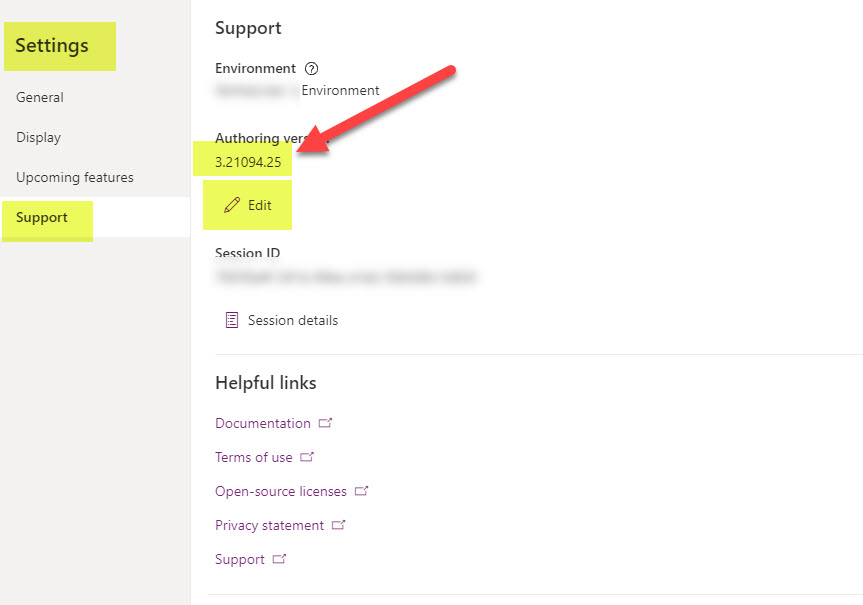
On this page you will see the current Authoring Version – now select the Edit icon
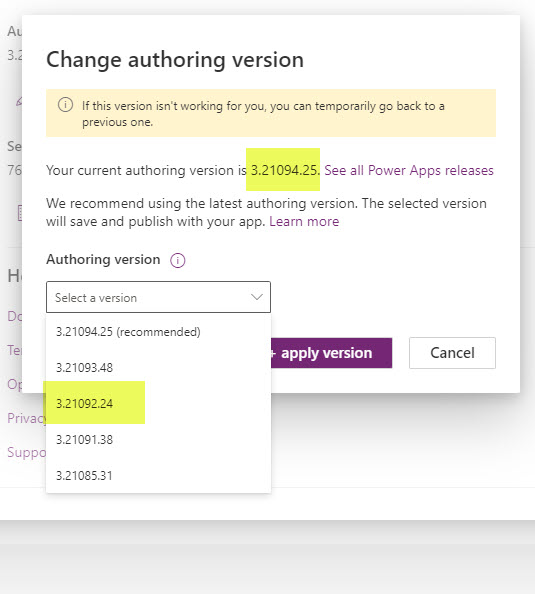
Select the version you wish to revert to – in the above it is two versions before.
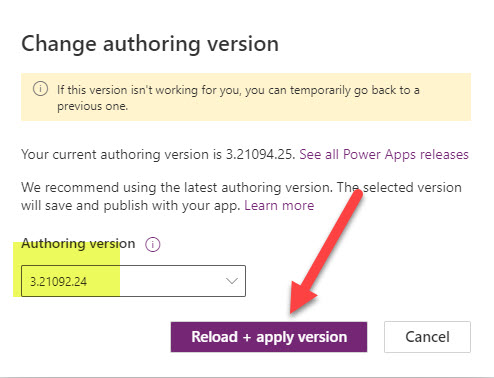
Select the version you need and then select Reload + apply version
Now the slightly confusing part – you have not changed anything presently, just set the Studio to reload the app in the desired Version, so unless you have changed something in the app in this session, select Don’t save when asked
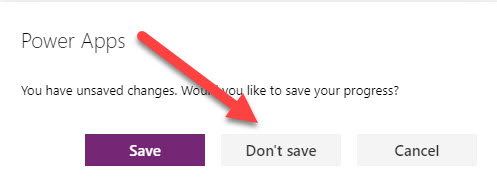
and then Leave Site
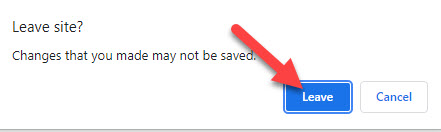
Your app will then reload – check the end of the URL to ensure it is loaded in the correct version

All that is left now is to Save and Publish your app – NOTE sometimes you need to make a slight change to something for the Save option to be activated.
After you have done this, go back to your app list and click on the “three dots” then Details
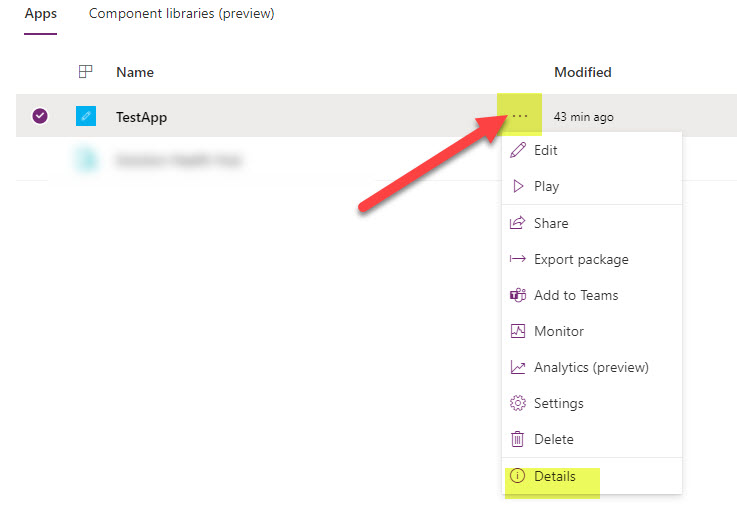
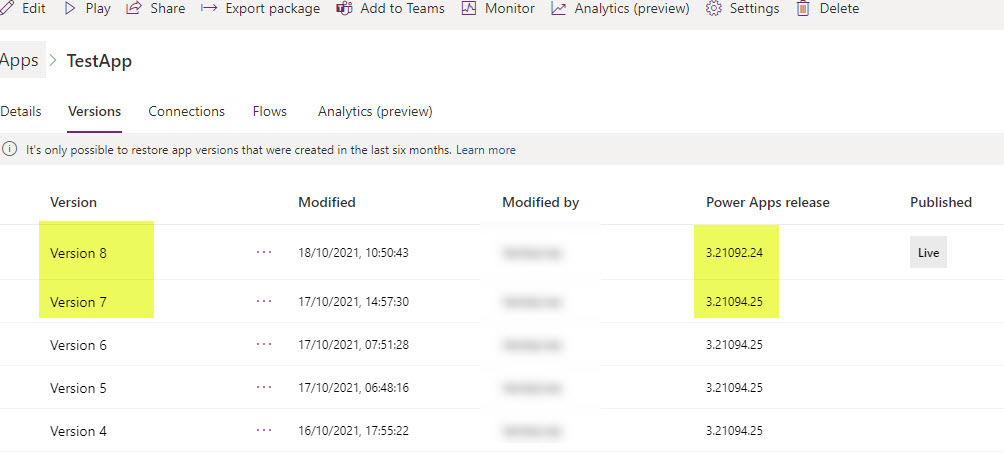
then ensure that your app have been published in the required version