Simple effective editable Gallery
The following is a guide to constructing an editable gallery with the user able edit in-line records and save back to the data source. It has functionality to ensure only one record can be chosen and no others selected unless the target is saved or cancelled.
NOTE: This example uses Classic controls you will need on some Modern controls to change to the equivalent references. Also the example uses SharePoint.
Firstly, but this at Screen OnVisible
UpdateContext(
   {
      varEditID: 0,
      varReset: false
   }
)
Insert a blank Vertical Gallery and use a SharePoint List (or collection based on a SharePoint List) as the Items. Any normal filters can also be used. If ShowColumns are used, ensure that the ID column is included – it does not however need to be displayed in the Gallery.
For any Gallery fields not needing to be edited, use a Text Label with the Items
ThisItem.YourFieldNameFor fields you need to be edited, use the appropriate control for the field type (Text Input for Text fields, Drop-down/Combo Box for Choice fields or if you want to give the user choices writing back to a Text field, DatePicker for Date/Time fields.
Set the Default / DefaultDate / DefaultSelectedItems to
ThisItem.YourFieldNameor whatever is required if different target type.
Ensure that the OnSelect of both the Gallery and all controls is false
Make the DisplayMode of all these (editable) controls
If(
   varEditID = ThisItem.ID,
   DisplayMode.Edit,
   DisplayMode.View
)
and the Reset
varResetNow put two icons in the gallery – you may choose others, but Icon.Cancel and Icon.Edit are a good start.
Make the Visible of Icon.Cancel
varEditID = ThisItem.IDand the OnChange
UpdateContext(
   {
      varEditID: 0,
      varReset: true
   }
)
Now the other icon (Icon.Edit), set the Icon property to
If(
   varEditID = ThisItem.ID,
   Icon.Save,
   Icon.Edit
)
the OnSelect property to
If(
   varEditID = 0,
   UpdateContext(
      {
         varEditID: ThisItem.ID,
         varReset: false
      }
   ),
   Patch(
      YourDataSourceName,
      {
         ID: ThisItem.ID,
         TextField: TextInput.Text,     //use .Value if modern control
         ChoiceField: ComboBox.Selected.Value,
         DateField: DatePicker.SelectedDate
      }
   );
   UpdateContext({varEditID: 0})
)
and the Visible property to
varEditID = ThisItem.ID || varEditID = 0So what is happening here ?
When the gallery first opens, all fields are in View Mode and and Edit Icon is on the right side.
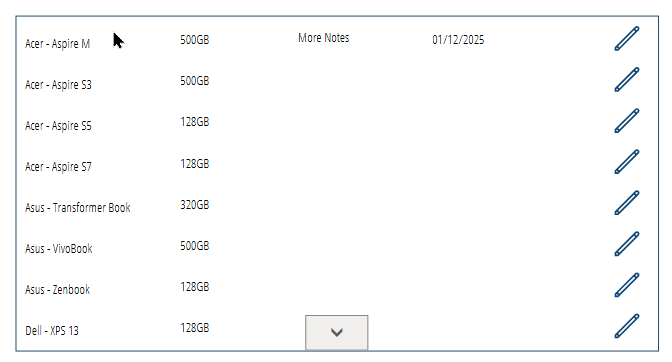
Pressing the Edit Icon
- Changes all the controls in that record to Edit Mode
- All controls in other records remain in View Mode and edit icons in these records are hidden – they also cannot be selected when the target record is in Edit Mode.
- Makes the Cancel Icon visible
- Changes the Edit Icon to a Save Icon
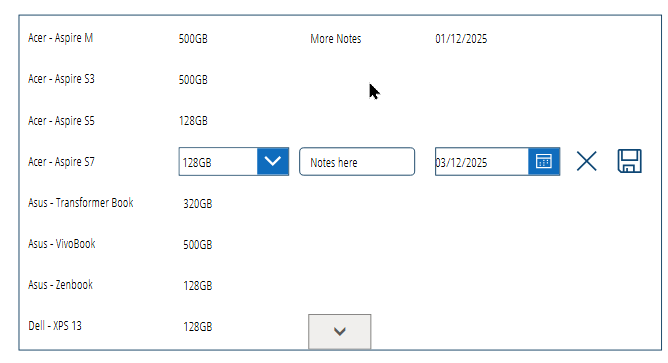
Pressing the Save Icon (actually the original Edit Icon)
- Saves the changes (if any) you have made to the record
- Puts the entire gallery back into View Mode so another record can be edited
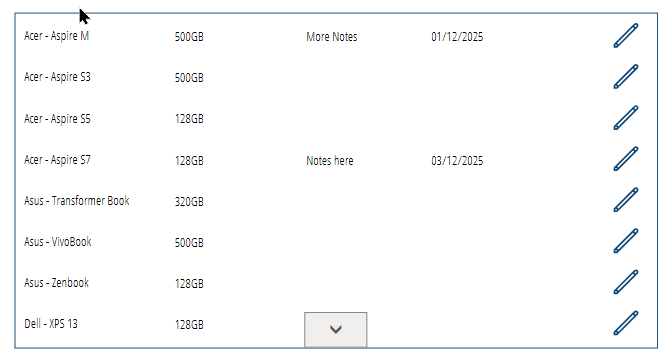
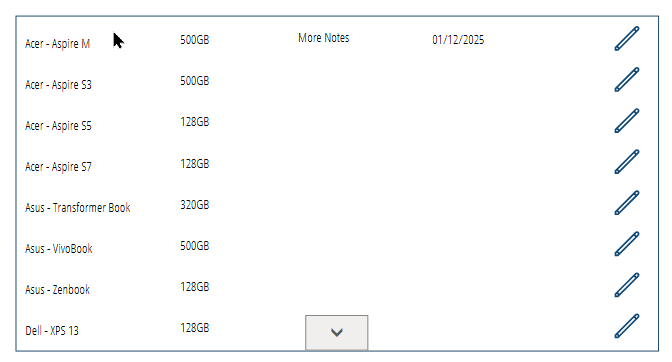
Pressing the Cancel Icon
- Resets any editable controls
- Puts the entire gallery back into View Mode so another record can be edited
4 Comments
Teddy
Hi! I can’t find how to set the Default / DefaultDate / DefaultSelectedItems…what am I doing wrong? It’s not appearing in the dropdown of the date picker, or any of the inputs…
Teddy
Great guide! Is there a way to test this without publishing the app? The OnVisible seems to be the inhibitor here…
A few notes:
1. I don’t think this works with Modern
2. Under patch, SPlist was not apparent to me that that needs to be the SharePoint List – it looked like a function. Similarly, the date fields, text fields, etc need to be updated based on your own data. This was not clear to me. In this area, it is not clear if Value is needed on just the text field or date picker too…
3. After the patch function, we introduce a new variable, varEdit – I don’t think it’s needed. Similarly, I don’t believe the OR statement in the edit icon’s Visible is necessary. I can’t think of a time when the statement wouldn’t be true.
Teddy
Nevermind! I got it to work with the modern controls…
Instead of DefaultDate, it’s InitialPickerDate
The cancel icon’s OnSelect needs Reset(DatePicker) and there is no need for the varReset variable.
Warren Belz
Yes = they are Classic controls. I have updated the post to clarify this
Change SPList to YourDataSourceName – I hope it is clear now
varEdit should be varEditID as per the previous variable – updated (there is only one Variable).
varEditID is zero initially and every time a record is saved, so all edit icons need to be visible. When a record is being edited, it equals the ID of the record, so only that icon (which is a save icon now) needs to be visible.
To test without publishing, put a button on the screen with the OnVisible code- you can delete it later.